
Ops & Automation
Turn AI into a Content Ops Assistant with the gcms Skill
Download a dedicated AI package from the admin, give it to Codex, Claude Code or Cursor, and let AI diagnose, audit, draft, improve SEO and upload media within scoped permissions.
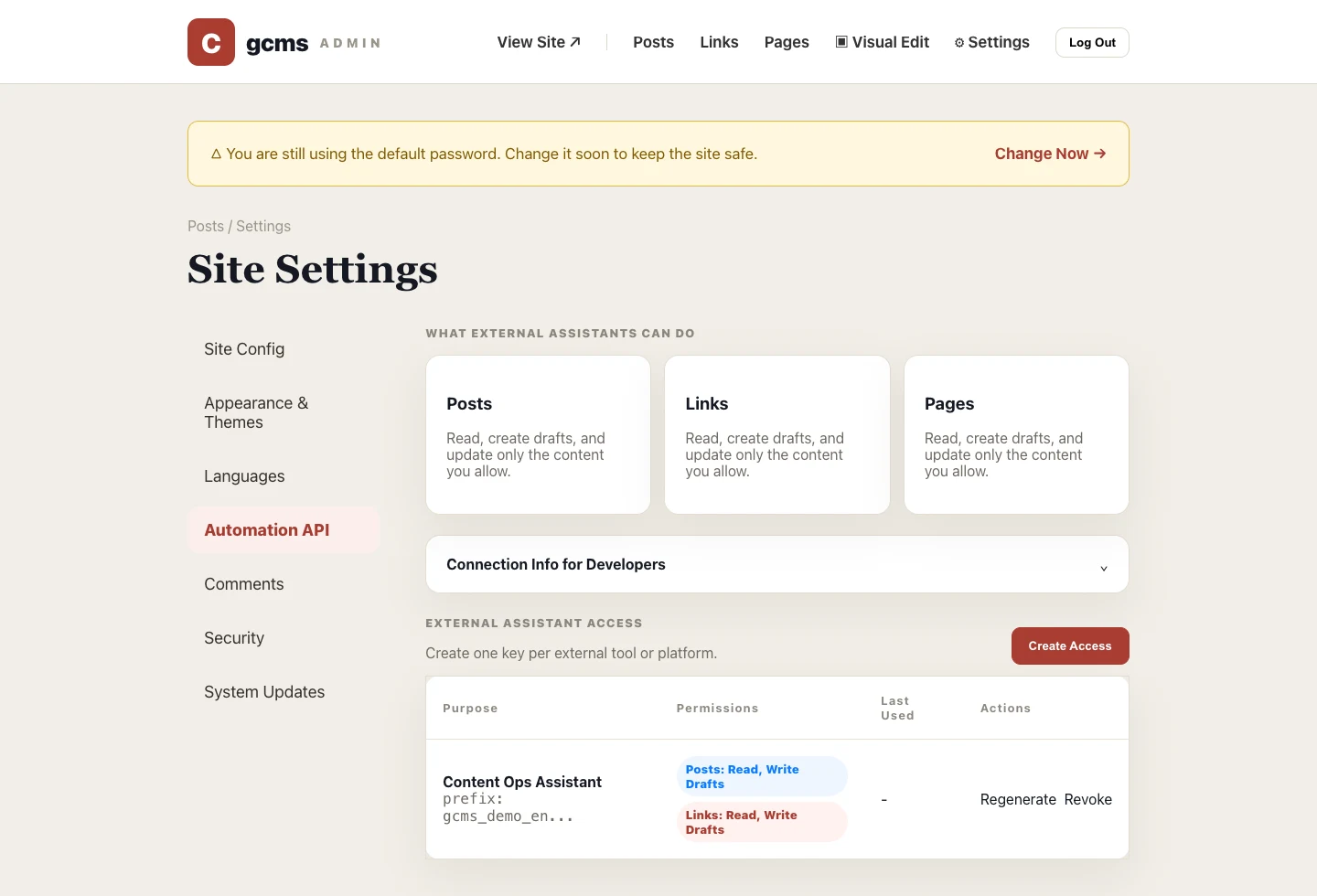
If the automation API answers whether AI can access your site safely, the gcms Content Assistant Skill answers the next question: how should AI work once it has access?
It is not an online service, and gcms does not call an AI model for you. It is a downloadable AI package containing the live key for that access rule, an OpenAPI description, assistant instructions, a Skill file and a small CLI helper. Give it to an AI tool, and the tool can work on your site content within the permissions you grant.
Prepare gcms first
If you do not have gcms running yet, start with the release package:
- Download packages: GitHub Releases;
- One-line install:
curl -fsSL https://raw.githubusercontent.com/ccvar/gcms-releases/main/install.sh | sh; - Open
/adminafter launch and change the default admin password first.
The Skill is not a server-side plugin. It is for external AI tools, so you need a reachable gcms site before creating a scoped access key for AI.
Where to download the Skill
Open Settings → Automation API in the admin, then create an access key. Give it a clear name such as Content Assistant or SEO Draft Assistant, and grant only the scopes it needs.
After creation, the page shows the key once and offers Download AI Package. That is the recommended download path because the package already contains the correct GCMS_API_BASE and the GCMS_API_KEY for that specific access rule.
For development or local testing, you can also inspect the skills/gcms-content-assistant template in the source tree. For real use, download a dedicated package from your own admin. Keys and scopes belong to your site; they should not come from a public repository.
How to install it in an AI tool
After downloading, unzip the package. You will see a quick README.md and a complete gcms-content-assistant folder. The folder contains:
AI助手说明.md: task boundaries, content model and safety rules for AI;SKILL.md: instructions for tools that support Skills;references/openapi.json: the current site's full automation API description;scripts/gcms.js: an optional CLI helper for doctor checks and common read/write actions;- hidden
.env: yourGCMS_API_BASEand the liveGCMS_API_KEY.
Installation depends on the tool:
- Codex / Claude Code / Cursor: open or attach the whole
gcms-content-assistantfolder so the tool can read it; - Tools that support Skills: use
gcms-content-assistantas the Skill directory; - General AI tools: ask the tool to read
README.md,AI助手说明.md, hidden.envandreferences/openapi.json, then call the HTTP API; - Developer scripts: run
node scripts/gcms.js doctorinsidegcms-content-assistant; the script reads.envand checks the connection.
Whichever route you take, once an AI tool reads .env, the key travels in plain text to the model provider behind that tool. This applies even to Codex, Claude Code or Cursor working on a local folder, unless you have pointed them at a model running on your own machine. Give the access rule only the scope this task needs, and revoke it when the task is over.
On first connection, ask AI to read the instructions and references/openapi.json, then run:
node scripts/gcms.js doctor
If you do not use the script, start with GET /languages. This checks the API base, key, OpenAPI, enabled languages and basic permissions. Passing this check before writing content saves a lot of back-and-forth debugging.
What it is good at
This Skill is designed for repetitive and structured content operations:
- Audit recent posts for missing titles, excerpts, SEO descriptions, keywords, categories or cover images;
- Create post drafts from source material and choose a valid
category_id; - Upload WebP cover or inline images and write returned URLs into
cover_imageor Markdown image syntax; - Maintain link resources with descriptions, excerpts, SEO fields and categories;
- Find multilingual versions by
trans_groupand improve each language separately; - Add custom languages, or enable built-in Vietnamese
vi, Indonesianidand Thaith, if the key has that permission; - Pin or unpin posts and links to adjust featured homepage content;
- Review whether a draft is ready to publish.
It should not publish by default, nor should it modify site settings, themes, security, navigation or category structure. Those remain safer as deliberate admin actions.
How to ask AI for work
Do not just say: improve my site. State the range, target, action, boundary and output format:
Read the instructions and the OpenAPI description first, then run node scripts/gcms.js doctor to check the connection and permissions.
Audit the latest 50 Chinese posts for missing title, excerpt, SEO description, keywords, category and cover image.
Only return issues and suggestions; do not modify content.
If multiple similar titles appear, list their IDs and ask me to confirm.
Return a table with id, title, issue and recommended action.
The same applies to creating content: query categories first, keep status as draft, upload images before writing cover URLs, and read the item back after updating. The clearer the boundary, the more reliable the assistant becomes.
Permission advice
Create a separate access rule for each AI tool or task rather than sharing one key, and open the rule in the admin to confirm what it actually allows.
Start with languages:read, category reads, content reads and draft writes. After the workflow feels stable, consider granting publish permission to a separate dedicated assistant. Do not mix publishing with a daily audit key.
If a key leaks, a project ends, or a tool is no longer used, revoke that access rule in the admin. gcms records recent use, so stale keys are easy to spot.