
Ops & Automation
Operate Multiple Sites from One Admin
Manage sites, domains, entry points and automation APIs at the platform layer, while each site keeps its own database and uploads.
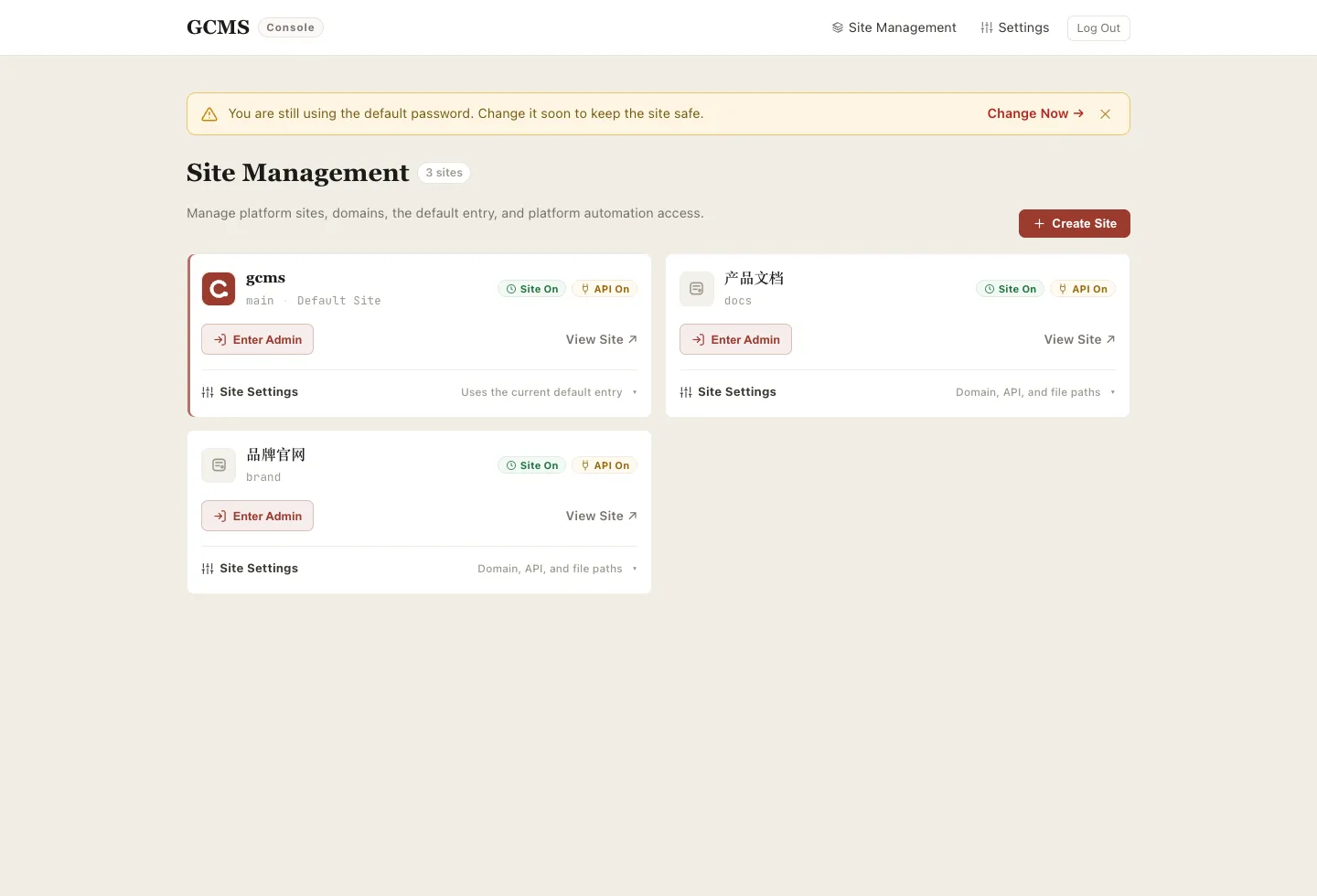
Many multisite setups grow over time: a product site, a documentation hub, a resource directory, and a few campaign pages. Separate deployments work, but login URLs, databases, uploads, backups and automation access quickly scatter.
gcms brings those entry points back into a platform layer: open site management first, then enter a specific site's admin.
It is not a bigger category system
Multisite is not just more categories or a busier navigation bar. Each site has its own content, settings, theme, upload directory and SQLite database. You operate them as separate websites, while sharing one login and control surface.
What the platform layer controls
After login, Site Management is the first screen. It creates sites, opens previews, enters a site admin, binds domains, enables or disables sites, controls platform automation access, and downloads a site-specific AI package.
The default site uses the current platform entry and does not need an extra domain. Non-default sites use their own domains, or can stay domainless while you build and test them through admin preview.
Storage stays isolated
Non-default sites live under data/sites/{slug}/, with their own cms.db and uploads directory. That keeps backup, migration and troubleshooting clear. One site's images and content do not leak into another site's storage.
Creating a new site
Click New Site, then enter a slug and display name. Pick demo data or an empty site, and decide whether to allow automation:
- With demo data: best when you want to reshape the gcms sample into a product site or docs hub;
- Empty data: best when you already have a content plan and want a clean start;
- Allow platform automation access: useful when AI assistants or external scripts should operate this site through the platform API.
After creation, Enter Admin opens that site's own admin. Posts, links, pages, themes, Cloudflare deployment, comments and security settings apply only to the current site.
Switching sites
Inside a site admin, the switcher next to the logo lets you return to Site Management or jump to another site admin without logging out. For people maintaining several projects, this removes a lot of repetitive navigation.
Disable, archive, restore
A non-default site can be disabled first. Public access pauses, but data remains.
If you don't need it for now, archive it. Archived sites disappear from Site Management but can still be restored from the archive list in Platform Settings.
Only when you're sure you won't need it again, delete it permanently from the archive list, which asks for a second confirmation. Back up that site's database as a consistent export, together with its uploads directory, before you do.
Recommended setup
Keep the default site for the most important official entry. Put docs, directories, campaigns and experiments into non-default sites. Bind only the domains each site needs, and enable platform automation only where external tools should work.