
Ops & Automation
gcms In-App Updates: Version Checks, SHA256 Verification and One-Click Upgrades
The admin checks for a new version, downloads the right package, verifies SHA256, swaps and restarts. Every upgrade comes from a public release you can inspect.
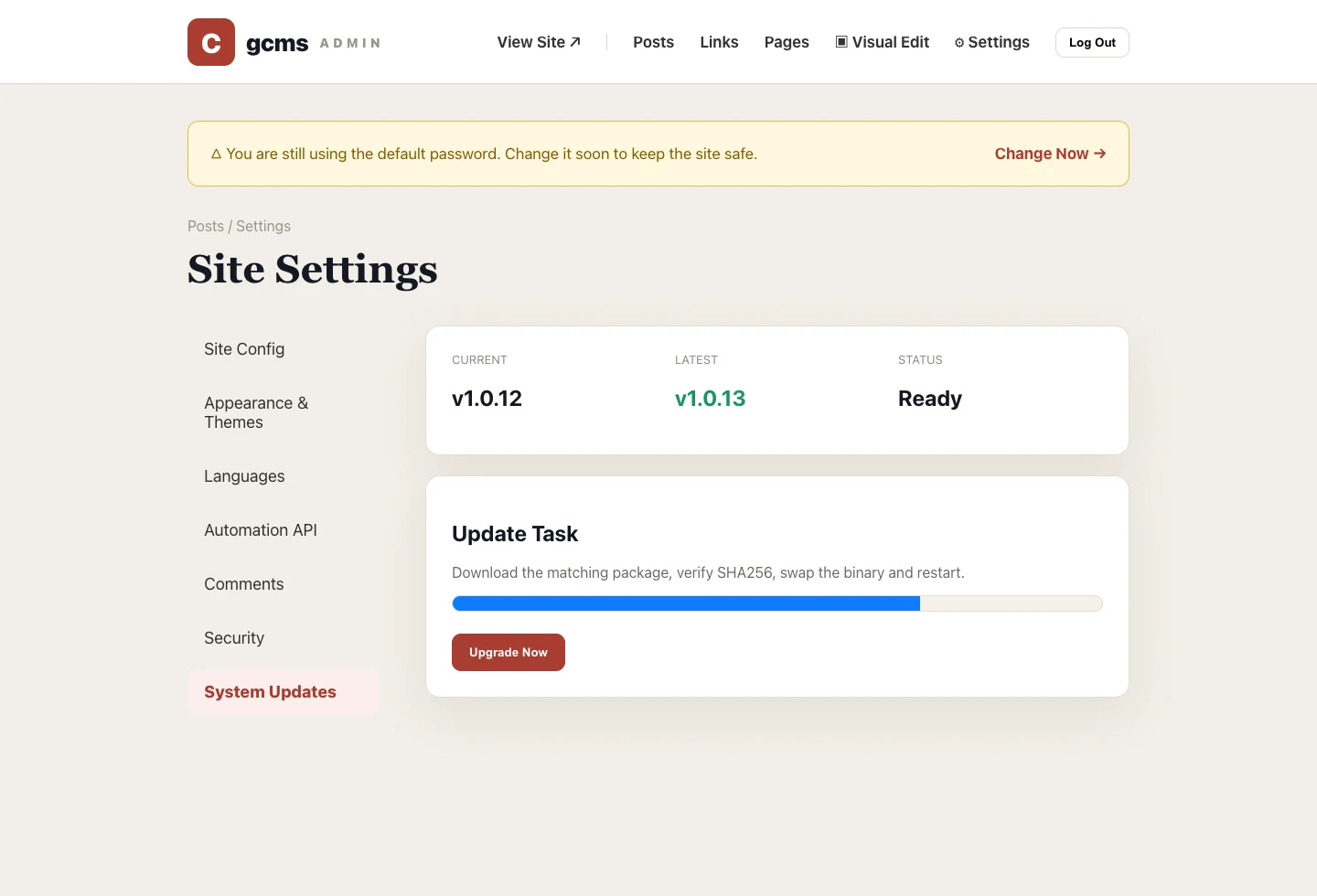
The danger of self-hosting is the 'install it and forget it' trap. gcms builds upgrading into the admin, so swapping versions no longer means SSH-ing in to run commands.
Automatic checks
Settings → System Updates compares a public release manifest (manifest.json) and tells you whether there's a new version and what changed.
One-click upgrade
Confirm, and it downloads the right platform package, verifies the SHA256, replaces the binary and restarts — all in the browser. The checksum confirms the package arrived complete and undamaged. It can't protect the swap-and-restart step from being interrupted, which is why the backup below still matters.
Always in control
The release repo is public and auditable, so you always know which version you upgraded to and from which release. Prefer caution? Keep replacing packages by hand — in-app update is just the easier path.
Before you upgrade
Check two things first. One: you have a backup you could actually restore from — an exported database copy, or the .db taken with any -wal and -shm after stopping the service, never a copy grabbed while it runs. Back up the uploads directory and config as well; on a multisite install, include each site's own database and uploads. See how to export a consistent database backup. Two: the current runtime directory follows the standard release layout. If an upgrade is cut off halfway, stop the service, put the old binary back, move the current .db, -wal and -shm out of the way, then restore that backup to return to the previous version.